How to Run OpenClaw on a Mac mini Safely (Beginner Guide)
The phenomenon speaks for itself.In early 2026, multiple technology outlets linked the growing interest in OpenClaw with increased attention toward the Mac mini among developers and early adopters. For many beginners exploring persistent, self-hosted AI agents, the Mac mini has been viewed as a relatively accessible entry point in terms of cost and maintenance compared with more complex server setups.
The numbers are simply astonishing: within a week of the release of OpenClaw, the library attracted more than 100,000 GitHub stars and 8,900+ community members on Discord.
This guide covers why the Mac mini emerged as the ideal hardware for OpenClaw, essential safety considerations for 24/7 operation, and how proper infrastructure ensures reliable performance. For new users new to OpenClaw with little technical knowledge, these basics are critical to avoid costly mistakes and ensure successful deployment.
Hardware requirements: Setting up your Mac mini for success
Minimum Mac mini specifications
The base Mac mini M4 is sufficient for most OpenClaw deployments related to cloud API usage. The entry-level Mac mini comes with a 10-core CPU featuring 4 performance cores and 6 efficiency cores, a 10-core GPU, and a 16-core Neural Engine. However, 16GB RAM is recommended for optimal performance with concurrent workflows and local language models in addition to cloud usage.
The storage requirements depend on the usage patterns. At least 256GB is required to run OpenClaw. 512GB or more is highly recommended as the tool accumulates conversation logs, cache data, and installed skills. In addition, users who run local inference models require much more storage space, with 250GB or more required for models with 30 billion parameters or more.
Stable internet connectivity becomes critical for always-on operation. OpenClaw routes requests to external APIs, retrieves information from the web, and maintains connections to messaging platforms continuously. Wired Ethernet connections through the Mac mini's built-in Gigabit port provide superior reliability compared to Wi-Fi, especially for deployments handling mission-critical automation.

Source: unsplash.com
The critical role of a quality docking station
In fact, most beginners will realize this limitation once the installation process is complete, as running OpenClaw will keep the Mac mini busy at all times, handling multiple USB devices such as the keyboard, mouse, external hard drives, multiple high-resolution displays for monitoring, network cables, external hard drive storage for AI model data, etc.
Without adequate expansion and power management, the system will be plagued by a mess of cables, dongles, unreliable connections causing disruptions in AI workflows, overheating due to poor airflow, and insufficient storage causing problems in AI model performance, to name a few problems.
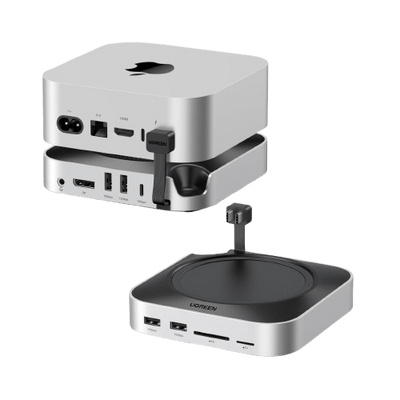
The UGREEN Mac mini docking station is specifically designed to cover these infrastructure needs. There are two versions of the docking station.
Option 1: UGREEN Mac mini M4 8TB Dock suits power users running multiple AI models and storing large datasets. The built-in NVMe SSD enclosure supports up to 8TB of additional storage for multiple AI models locally, conversation logs, and training data. Fast 10Gbps data transfer rates ensure responsive performance when loading models or writing logs. Eight total USB ports eliminate device-swapping frustration. The anti-slip design keeps setups stable during 24/7 operation while maintaining a compact footprint beneath the Mac mini.
{{UGPRODUCT}}
Option 2: UGREEN Mac mini M4 4K Docking Station offers the essential components needed for OpenClaw deployment with efficiency and simplicity. The 4K@144Hz DisplayPort offers efficient display interface visibility. The SSD enclosure offers efficient storage capacity. The five USB ports offer efficient peripherals with 10Gbps data transfer for efficient performance.
{{UGPRODUCT}}
Step-by-step: Safely setting up OpenClaw on your Mac mini
Physical setup with the UGREEN dock:
The Mac mini should be placed in a manner that ensures proper ventilation around it. The UGREEN dock should be placed at the bottom of the Mac mini, ensuring that the anti-slip pads make proper contact with the surface. Devices should be connected to the dock and not the Mac mini. Devices connected to the dock's USB ports will ensure that the heat produced by the Mac mini's own USB ports is minimized.
The network setup:
The network setup will be better if a wired Ethernet connection is established using the dock, which is a better option than using a Wi-Fi connection. A static IP should be set up in order to allow stable connections, even if the network is accessed remotely. The firewall rules should be set up in the router in order to restrict the exposure. A VPN solution should be implemented, and the network should not be exposed to the internet.
Installation process
Step 1: Install OpenClaw
Visit openclaw.ai and copy the installation command. Open Terminal and paste:
curl -fsSL https://openclaw.ai/install.sh | bash
Follow the terminal prompts. When prompted to enter "I understand this is powerful and inherently risky. Continue?", select Yes. In the Onboarding mode, select Quickstart. The dependencies will be downloaded automatically.
Step 2: Initial configuration
Select your language model provider. ChatGPT (OpenAI), Claude (Anthropic), and local models via Ollama are good options. In case you select OpenAI, you will be required to enter your API key, which you can obtain on platform.openai.com/api-keys. You will also be required to select your model version.
Step 3: Storage optimization with the UGREEN dock
Configure OpenClaw to store files on the external SSD of the UGREEN dock. The files to be stored on the external SSD will be the weights of the AI model, the conversation log, cache files, and output files. This will extend the lifespan of the Mac mini's SSD and provide faster access to the files via the 10Gbps connection.
Step 4: Start the service
Start the OpenClaw service in the background and configure auto-start at system boot to resume the agent in case of power interruptions and system updates. Check the stability of the 24/7 operation of the system through the system logs within the first few hours.
Step 5: Pair your interface
You can use the Telegram bot for mobile device access, which is recommended, or use the web interface. The Telegram bot will send push notifications that are reliable and will work on different devices. It is important to check the commands and responses to confirm the interface and file access through the dock storage before using the system.
Monitoring your setup
Connect a display to the UGREEN dock DisplayPort to monitor CPU and memory usage, disk activity of internal and dock SSDs, network connections, as well as AI operation logs. Activity Monitor will be used for system health monitoring. Set up alerts for potential issues before they cause failures. Regular monitoring during the first week identifies configuration problems early.

Source: unsplash.com
Best practices for 24/7 operation
Thermal management
The Mac mini M4 is designed to operate efficiently at 5-7 watts at idle and up to 35 watts under heavy load conditions. The design of the UGREEN dock ensures proper airflow through the Mac mini's ventilation systems.
Keep the Mac mini away from heat sources such as the sun or a radiator. Monitor the temperature using the Mac mini's internal sensors using the Activity Monitor application.
Power management
The UGREEN dock is designed to work with PD power adapters, which provide power delivery through a single cable. Configure energy saver settings through the System Settings to ensure the Mac mini operates in continuous mode.
Disable the sleep mode to prevent interruptions in operation. Protect the Mac mini against power outages using a UPS, such as the APC BE600M1, which provides sufficient backup time to ensure a graceful shutdown in the event of an outage.
Data backup strategy
Regularly back up the dock's SSD data to secondary storage. Export OpenClaw configurations, including channel settings, API keys (stored securely), and skill installations. Maintain secondary storage for critical AI data on a separate physical drive. Configure Time Machine with the dock's external storage as the backup destination, creating restoration points for disaster recovery.
Maintenance schedule
Weekly: Check system logs for errors or warnings. Clear temporary files accumulating in cache directories. Verify disk space availability on both the Mac mini internal storage and the dock SSD.
Monthly: Update OpenClaw and dependencies as new versions become available. Check security settings and update the rotation of credentials. Validate the restoration of backups to ensure their viability.
Quarterly: Validate the health of storage devices using the disk utility provided by the dock SSD. Update the firewall rules as the usage of the system changes. Evaluate whether hardware upgrades help to improve system performance as the usage of the system changes.
Performance Optimization
Determine the appropriate amount of RAM to be allocated to AI models, as they require varying memory. Leverage the fast SSD storage of the dock to improve the speed of AI models, as they load.
Close unused background applications to avoid using system resources. Check the available disk space on the Mac mini and the storage of the dock. To maintain consistent performance, it is advisable to keep sufficient free disk space available and periodically clean up logs, caches, and unused data, especially on systems running continuously.
Conclusion
You now possess the knowledge to safely run OpenClaw on a Mac mini, understanding why proper infrastructure matters for reliable operation. The step-by-step guidance transforms beginners into competent operators capable of maintaining production deployments.
Running your own AI infrastructure requires reliability that exceeds casual experimentation. UGREEN docking stations provide professional-grade expansion designed specifically for the Mac mini's form factor and capabilities. They enable true 24/7 operation without the compromises that plague makeshift solutions cobbled together from generic adapters and consumer hardware.
The Mac mini plus UGREEN dock combination delivers infrastructure that scales with your needs. As OpenClaw evolves and your automation requirements expand, the foundation remains solid. What begins as a personal assistant handling email and calendar automation can grow into a comprehensive system managing complex workflows, yet the underlying hardware continues operating reliably because you established proper infrastructure from the beginning.
FAQs
1. Can OpenClaw run on a Mac mini without issues?
Yes. OpenClaw is lightweight and runs smoothly on most Intel and Apple Silicon (M1/M2/M3) Mac mini models. The key is downloading the correct macOS version and ensuring your system is updated. It does not require high-end graphics hardware.
2. Is it safe to download OpenClaw on macOS?
It is safe if you download it from the official GitHub or verified source. Avoid third-party download sites, as they may bundle modified files. After downloading, macOS Gatekeeper may show a warning — simply confirm the app is from a trusted developer before opening.
3. Do I need special software to run OpenClaw?
No advanced setup is required. OpenClaw typically runs as a standalone app. Just extract the file and move it to your Applications folder. If you are using Apple Silicon, make sure you are not forcing unnecessary emulation unless required.
4. Will OpenClaw damage my Mac mini?
No. OpenClaw is a classic platform game remake and does not access system-level files. It only uses normal CPU and graphics resources. As long as you download it safely, it will not harm your device.
5. How can beginners avoid common problems?
Keep macOS updated
Download only from official sources
Avoid modifying game files at first
Check system permissions if the game doesn’t open
Following these simple steps ensures a smooth and safe experience on your Mac mini.