OpenClaw on Mac Mini: Minimum Setup Without Exposing Your System
OpenClaw has surged past 165,000 GitHub stars since late 2025, making it one of the fastest-growing open-source projects in history. But its power comes with serious security considerations that most setup guides skip entirely.
This guide covers what OpenClaw needs access to, why that matters for your privacy, and the minimum steps to run it safely on a Mac mini M4. Your OpenClaw Mac mini setup doesn't have to mean putting your personal data at risk.
What Is OpenClaw, and Why Does It Need So Much Access?
OpenClaw is an open-source AI assistant that runs 24/7 on your own hardware, connecting to messaging apps like WhatsApp, iMessage, and Slack to execute real-world tasks autonomously – which means it needs access to your files, network, and accounts to function.

Originally called Clawdbot, then Moltbot, OpenClaw was created by Austrian developer Peter Steinberger – the founder of PSPDFKit, whose clients included Dropbox, Salesforce, and IBM.
Think of it as a personal JARVIS: it reads files, executes shell commands, controls browsers, manages calendars, and sends messages on your behalf. It connects to cloud AI models like Claude or GPT-4, or runs local models if you have enough memory.
The trade-off is straightforward. To do useful things, OpenClaw needs the same level of access to your computer that you have. That's what makes it powerful, and it's precisely what makes security non-negotiable.
If you’re not savvy and don't know what you’re doing, you could quite easily allow people with malicious intent to access your entire system (say you prompt wrong or the AI runs a specifically vulnerable piece of code), or leak very sensitive personal or company data to the AI models themselves.
Why Is Mac mini M4 the Ideal OpenClaw Host?

Source: Unsplash
The Mac mini M4's silent operation, sub-5W idle power, Apple Silicon efficiency, and exclusive iMessage integration make it the most practical hardware for running an always-on AI assistant like OpenClaw. Here's what gives it the edge:
- Near-zero power draw — The M4 idles at just 3–4 watts, comparable to a Raspberry Pi. Under typical OpenClaw workloads, you're well under 10W. Running it 24/7 costs roughly the same as leaving a nightlight on — a fraction of what any GPU-equipped PC would pull.
- Actually silent — The base M4's fan sits at ~1,000 RPM and rarely goes above 1,200 RPM during normal use. Recording studio users — people who measure noise for a living — report it as inaudible. Important caveat: the M4 Pro gets noticeably louder under sustained heavy loads.
- Unified memory eliminates AI's biggest bottleneck — Apple Silicon shares one memory pool between CPU and GPU. No data shuttling between system RAM and discrete VRAM, which is the main performance killer for memory-bandwidth-bound AI workloads. The base M4 with 16GB handles cloud-based AI providers effortlessly.
- Local model powerhouse at 64GB — The M4 Pro with 64GB runs 32-billion-parameter models at 11–12 tokens per second — fast enough for real-time use. Users report running multiple quantized models simultaneously without issues. If you want to cut the cloud API cord, this is the sweet spot.
- The only path to iMessage — OpenClaw's iMessage integration requires macOS. You can technically bridge it over SSH from a Linux gateway, but you still need a Mac in the chain. For anyone in the Apple ecosystem, the Mac mini is the only practical option.
- The community already decided — OpenClaw has 100,000+ GitHub stars, and the Mac mini is the de facto reference hardware. Setup guides, tutorials, and community builds overwhelmingly run on Mac minis. Even the media are reporting on it. At $599 for the base model, it pays for itself within months versus equivalent cloud hosting.
What Are the Real Security Risks of Running OpenClaw?
OpenClaw requires extensive system permissions, and recent vulnerabilities have allowed attackers to hijack installations through malicious links, steal credentials via fake marketplace skills, and execute remote code with a single click.
In January 2026, security researchers at DepthFirst discovered CVE-2026-25253 – a critical vulnerability (CVSS 8.8) that enabled one-click remote code execution.
An attacker could steal your authentication token through a crafted webpage, connect to your local OpenClaw instance, disable sandboxing, and run arbitrary commands. This was patched in version 2026.1.29, but it affected even installations configured for loopback-only connections.
Separately, security firm Koi Security audited all 2,857 skills on ClawHub – OpenClaw's extension marketplace – and found 341 malicious entries. Of those, 335 were part of a coordinated campaign called ClawHavoc that distributed the Atomic Stealer (AMOS) malware, targeting macOS credentials, crypto wallet keys, and SSH credentials.
The official OpenClaw documentation states plainly: "There is no 'perfectly secure' setup." That honesty is worth taking seriously.
What's the Minimum Security Setup Everyone Should Use?
At minimum, enable macOS firewall and FileVault encryption, configure OpenClaw for loopback-only connections with token authentication, and set your DM policy to "pairing" mode – this takes about 10 minutes and blocks most common attack vectors.

Source: Unsplash
Start with macOS itself. Open System Settings, go to Network, and enable the Firewall. Then head to Privacy & Security and turn on FileVault to encrypt your drive. These two steps protect you regardless of what software you're running.
For OpenClaw specifically, the critical settings live in your configuration file. Set gateway.bind to "loopback" so the gateway only accepts connections from your own machine. Make sure gateway.auth.mode is set to "token" – the onboarding wizard generates one by default, but verify it's active. As of the v2026.1.29 release, gateway auth mode "none" has been removed entirely — authentication is now mandatory.
Set your messaging channel's dmPolicy to "pairing" so unknown senders must be approved before they can interact with your bot. Never use "open" mode. For a deeper walkthrough of all four DM policy modes, see this access control guide.
After installation, run openclaw security audit --deep to check for misconfigurations. Run this regularly, especially after updates. For a comprehensive hardening checklist beyond the basics, DefectDojo's in-depth edition is worth bookmarking.
That said, the community is evolving rapidly, and more and more fixes and best practices are being developed all the time. Take this Reddit thread, for example, about using the Mac Agent Gateway to tighten iMessage usage. That said, be aware of the potential dangers of following guides like this and using the code of others.
Should You Create a Separate User Account for OpenClaw?
Creating a dedicated standard macOS user account for OpenClaw isolates it from your main account's documents, passwords, and sensitive files – providing a clean containment layer if anything goes wrong.
Go to System Settings, then Users & Groups, and add a new account. Make it a standard account, not an administrator. OpenClaw running under this account can only access that account's home folder. Your main account's Documents, Downloads, SSH keys, and Keychain data remain entirely separate.
This is a five-minute setup that significantly limits the blast radius of any security incident. If something goes wrong, you can delete the entire user account and start fresh without touching your personal files.
How Do You Monitor What OpenClaw Is Actually Doing?
Install a network monitoring tool like Little Snitch or the free LuLu from Objective-See – these show every outbound connection OpenClaw attempts and let you block anything suspicious in real time.

Source: Unsplash
The built-in macOS firewall only handles incoming connections. For an AI assistant that actively reaches out to cloud providers, messaging platforms, and web services, you need to see outbound traffic too. Little Snitch ($49) or the free and open-source LuLu both do this well.
Start in silent monitoring mode to observe OpenClaw's normal behavior for a day or two. You'll see connections to your AI provider (Anthropic, OpenAI, etc.), your messaging services, and any skills you've installed. Once you understand the baseline, create rules to allow approved connections and alert you to anything unexpected.
What Files and Folders Should You Never Give OpenClaw Access To?
Keep OpenClaw away from ~/.ssh, ~/Library/Keychains, and ~/.gnupg – create a dedicated workspace folder instead and restrict access to that directory only.
Your SSH keys, macOS Keychain passwords, and GPG encryption keys are the highest-value targets on your machine. The ClawHavoc campaign specifically targeted credentials stored in configuration files and browser passwords. Don't make it easy.
Create a folder like ~/ai-workspace and configure OpenClaw to operate only within it. Be aware that OpenClaw's own data lives in ~/.openclaw/ – this folder contains session transcripts, API keys stored in plaintext JSON, and memory files (SOUL.md and MEMORY.md). Treat this folder as sensitive. Attackers in the ClawHavoc campaign specifically targeted these memory files to poison the AI's long-term behavior.
Does Running OpenClaw From External Storage Improve Security?
Running OpenClaw from a dedicated external NVMe SSD physically isolates its files from your main system drive, making it easier to contain, back up, and completely remove if needed.
The Mac mini M4 has three rear Thunderbolt 4 ports (Thunderbolt 5 on M4 Pro) plus two front USB-C ports. External NVMe drives connected via Thunderbolt deliver near-internal speeds, so there's no performance penalty. Your AI workspace lives on one drive, your personal files on another.
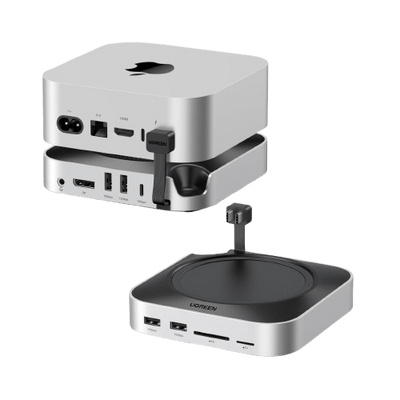
If you're building a dedicated OpenClaw workstation, a docking station helps keep everything organized. The UGREEN Mac mini M4 Docking Station adds 11 ports, including 10Gbps USB-A and USB-C connections, while its built-in M.2 NVMe SSD enclosure supports drives up to 8TB at 10Gbps transfer speeds. That means you can install a dedicated SSD directly into the dock for your OpenClaw workspace without adding cable clutter.
{{UGPRODUCT}}
The UGREEN Mac mini M4 4K Docking Station offers a similar setup with added DisplayPort output if you want a monitor connected to your AI workstation. Both sit underneath the Mac mini with a matching design, keeping your desk clean.
{{UGPRODUCT}}
One thing to watch: some users report external drives disconnecting during macOS sleep. If you're running OpenClaw 24/7, disable sleep entirely or use an app like Amphetamine to keep the system awake.
Is Full Virtual Machine Isolation Worth the Effort?
For users handling sensitive data, running OpenClaw inside a macOS virtual machine using UTM provides the strongest protection – complete isolation from your host system with easy snapshot and restore capabilities.
UTM is free (or $10 from the Mac App Store for automatic updates) and creates an entirely separate macOS environment on your Mac mini. Enable "Isolate Guest from Host" in the network settings and avoid sharing folders between the VM and your main system.
The real advantage is snapshots.
Take one before testing a new skill from ClawHub, and if anything looks suspicious, roll back instantly.
This requires about 60GB of disk space and 20 minutes of initial setup. It's overkill for casual experimentation, but essential if you're connecting OpenClaw to accounts with real money or sensitive business data.
What Are the Most Common OpenClaw Setup Mistakes?
The biggest mistakes are using open DM policies that let anyone message your AI, skipping token authentication, running on your primary user account, and installing unverified skills from ClawHub without checking their source.
The OpenClaw community describes the platform as "not hard, but unforgiving." Default settings aren't secure enough for production use, and common oversights can expose your entire system. Here are the mistakes to avoid:
- Using open DM policies — Setting dmPolicy to "open" lets anyone message your AI and trigger actions on your machine. Always use "pairing" mode, so unknown senders must be explicitly approved before interacting with your bot. The OpenClaw hardening checklist is blunt: never use "open" unless absolutely required.
- Skipping token authentication — As of v2026.1.29, gateway auth mode "none" has been removed entirely. But if you're on an older version or haven't verified your config, your gateway could still be exposed. Always confirm gateway.auth.mode is set to "token" and that a token is active.
- Running on your primary user account — OpenClaw can read files, execute shell commands, and access credentials. Security guides recommend running it on a dedicated machine or VM with a separate OS user account — never your personal machine with sensitive data.
- Installing unverified skills from ClawHub — This is the newest and most dangerous attack surface. Koi Security audited all 2,857 skills on ClawHub and found 341 malicious entries — nearly 12% of the marketplace. Most were traced to a single coordinated campaign called ClawHavoc, distributing Atomic Stealer malware. Always verify a skill author's GitHub history before installing, and consider running the Clawdex scanning skill to check packages against known malicious entries.
- Ignoring installation issues — Both npm and pnpm have documented installation bugs, particularly around sharp and node-gyp on macOS. The official installer script (curl -fsSL https://openclaw.ai/install.sh | bash) is the recommended path and handles most edge cases.
- Not staying updated — The January 2026 CVE-2026-25253 patch alone is reason enough. That was a CVSS 8.8 one-click remote code execution vulnerability — visiting a single malicious link could give an attacker full control of your gateway. Update to v2026.1.29 or later immediately.
Your Mac mini OpenClaw Setup, Done Right
OpenClaw's popularity is deserved. Having a personal AI assistant running 24/7 on your own hardware, under your control, is genuinely useful. But that power demands respect for the risks involved – and the security landscape is moving fast.
The minimum safe setup takes about 10 minutes: enable firewall and FileVault, configure loopback binding with token authentication, and use pairing-mode DM policies.
For extra protection, create a dedicated user account and consider external storage isolation with a dock like the UGREEN Mac mini M4 Docking Station to keep your AI workspace physically separate from your personal data.
With the right precautions and a clean hardware setup, your Mac mini becomes a capable AI workstation without putting what matters most at risk.
FAQs About OpenClaw Security
Is it safe to run OpenClaw on a Mac mini?
Yes, if you apply minimum isolation and access controls. Running OpenClaw on a Mac mini is considered safe when you use loopback-only binding, token authentication, pairing-mode DMs, and a non-admin user account. Unsafe setups almost always involve open DM policies or exposed gateways.
Does OpenClaw have access to all my Mac files by default?
No, it only has access to what the running user account can access. However, if you run OpenClaw under your primary macOS account, it can potentially read documents, browser data, and config files. A dedicated standard user account limits this automatically.
Is loopback-only mode enough to secure OpenClaw?
It blocks most remote attacks, but it is not sufficient alone. Loopback-only binding prevents external connections, but you still need token authentication, pairing-mode DMs, and careful skill installation to prevent local abuse or poisoned interactions.