Do You Really Need a Mac mini for OpenClaw? Pros & Cons Explained
The Mac mini rarely starts as part of the plan when people begin using OpenClaw. Most users start on whatever machine they already have, testing small tasks like messages or reminders. Then the setup grows. Calendars get connected. Shared documents are edited. Scheduled updates appear. At some point, OpenClaw is no longer something you open. It becomes something you expect to be there.
Over time, that casual experiment often turns into a more deliberate Mac mini OpenClaw setup, especially once reliability starts to matter more than flexibility. That shift brings hosting choices into focus. OpenClaw can run on Windows, Linux, or cloud servers just as easily as on macOS. The difference is not what the software can do, but how reliably it stays available once users configure it for longer runtimes and optional state persistence.
For some, a Mac mini becomes a simple way to keep OpenClaw running without tying it to a personal laptop. For others, it adds unnecessary complexity. This article explains when a Mac mini may be useful, when it is unnecessary, how setup choices affect performance and safety, and where optional accessories can support specific workflows.
What OpenClaw Is and How It Typically Runs
OpenClaw is best understood as something you host, not something you simply open and close. It can run locally on your own machine or remotely on a server, and it connects only to the services you choose to give it access to. At first, that might mean simple messaging or reminders. Over time, people often add calendars, shared documents, or memory files that let OpenClaw carry context forward.
What matters here is that none of this happens by default. Persistent memory, proactive responses, and tool access depend entirely on how the agent is configured. If you never enable them, OpenClaw stays limited. If you do, it starts behaving more like a quiet assistant in the background than a chat window you visit occasionally.
Why the Hosting Environment Matters
Once OpenClaw is expected to respond consistently, hosting stops being an abstract choice. A machine that sleeps, restarts often, or drops its connection will interrupt that flow. That is why uptime becomes noticeable only after people rely on the tool.
Hardware does not change what OpenClaw can do. It changes how convenient it is to keep running. Some users are happy with a laptop or a cloud server. Others prefer a system they can leave on without thinking about it. The difference is practical, not technical, and it comes down to how OpenClaw is used day to day.
Does OpenClaw require a Mac mini?
Short answer: no. OpenClaw does not require a Mac mini, or any specific type of computer. OpenClaw deployments commonly rely on a Node.js runtime environment, which means it can operate on macOS, Windows, Linux, or a remote server with the same underlying behaviour.From a practical point of view, the OpenClaw system requirements are simple: a machine that can run Node.js reliably and stay online when needed.
What changes is not what OpenClaw can do, but where it lives. Some people run it on a laptop while testing basic tasks like reminders or message replies. Others move it to a server once they start using features such as scheduled updates, shared document edits, or long-running workflows that benefit from staying online. In both cases, the software behaves the same way.
This is where confusion often creeps in. A Mac mini does not unlock new capabilities or improve performance on its own. It simply offers a convenient place to host OpenClaw if you want something that stays on without relying on your daily computer. Whether that convenience matters depends entirely on how you plan to use the tool.

Source:macrumors.com
Why Some Users Choose a Mac mini Anyway
Always-On Convenience
Most users do not reach for a Mac mini until something breaks. OpenClaw sends a daily update late because a laptop went to sleep overnight. A calendar reminder never fires because the machine rebooted for an update. A message is missed because the Wi-Fi dropped while the lid was closed. None of these failures feels dramatic on its own, but they add up fast once OpenClaw is trusted to act without prompting.
A Mac mini avoids those edge cases by design. It stays awake, plugged in, and connected, even when no one is actively using it. OpenClaw keeps running while the user switches devices or steps away, which matters when schedules and background checks are involved. Over time, that reliability changes expectations. Many users stop treating OpenClaw as something they manually open and begin seeing it as an OpenClaw always-on AI that is simply expected to be there.
Appliance-Style Usage
The other shift is psychological. OpenClaw stops living “inside” a personal computer and starts living somewhere else. Memory files, logs, and integrations stay on one dedicated machine. Personal browsing, downloads, and experiments stay on another.
That separation makes control clearer. If something behaves unexpectedly, users do not hunt through tabs or processes. They restart the box. If they want OpenClaw offline, they unplug it. The Mac mini becomes less like a computer and more like a quiet utility that does one job and stays out of the way.
Apple Ecosystem and Messaging Platform Considerations
iMessage-Centric Workflows
For people who already live in iMessage, a Mac mini often feels like the path of least resistance. For users who integrate OpenClaw with iMessage on macOS, messages can be processed directly on the host machine. If someone sends a quick instruction while you are away from your desk, OpenClaw can receive it, respond, and act without needing another device in the loop.
This setup is especially appealing when iMessage becomes the control layer. Short commands, confirmations, or follow-ups blend into everyday chats, which makes the assistant feel less like a tool and more like part of the flow. In this case, the Mac mini is not about power. It is about keeping everything in one place, quietly and predictably.
Cross-Platform Messaging Users
That advantage mostly disappears for users centred on Slack, Telegram, WhatsApp, or Discord. These platforms behave the same whether OpenClaw runs on macOS, Linux, or a cloud server. Messages are delivered through the platform itself, not the operating system.
Here, the choice of hardware is less emotional and more practical. Stability, uptime, and isolation matter more than brand. A Mac mini can still work, but it is no longer uniquely helpful. Any reliable system that stays online will do the job just as well.
Isolation and Containment as a Setup Preference
Why Some Users Prefer Dedicated Hardware
The push for isolation often starts with a moment of realisation, not a failure. Someone notices OpenClaw can read from the same folders that hold work drafts and invoices. Or it opens a browser that is already logged into email, cloud storage, and internal tools. Nothing bad happens, but the overlap feels wrong. The assistant is doing its job, yet it is sharing space with everything else.
A dedicated machine draws a cleaner line. OpenClaw gets its own user account, its own files, and its own network activity. Experiments stay contained. If a new tool behaves oddly or an integration misfires, users do not untangle personal sessions to regain control. They shut down the box and walk away. That physical switch gives people a sense of control that software settings alone often do not.
An Important Limitation
However, containment can give a false sense of safety. A separate machine does not reduce risk if permissions are loose. If OpenClaw is allowed broad file access, command execution, or unattended browser control, the exposure remains. A carefully limited setup on a laptop can be safer than a powerful agent running freely on dedicated hardware. Security comes from restraint, not distance alone.
Security Considerations When Running OpenClaw
Permission-Based Capabilities
OpenClaw’s strength comes from what it can be allowed to do. If you give it permission to read files, it can pull from folders you point it to. If you enable command execution, it can run scripts or maintenance tasks. If you connect a browser tool, it can act inside sessions that are already logged into email, cloud storage, or internal dashboards. And if messaging is enabled, it can send replies without waiting for confirmation. None of this is automatic. Every capability is switched on by the user, one decision at a time.
Problems tend to appear when those decisions are made quickly. For example, sharing an entire home folder instead of a single project directory, or letting a browser tool run under a profile that also has saved passwords and payment details. The result is an agent that is still doing exactly what it was asked to do, just across a much wider surface area than expected.
Common Risk Factors
The most common risks come from convenience. Broad permissions feel easier than fine-grained ones. Integrations pile up without review. OpenClaw gets added to a group chat where anyone can issue requests, including people who do not understand its limits. Over time, the agent starts responding to inputs it was never meant to trust.
Another issue is assuming isolation equals safety. A dedicated machine can still be risky if everything is enabled at once.
General Safety Practices
Stronger setups grow with friction on purpose. Start with narrow access and expand only when there is a clear reason. Use separate user accounts so OpenClaw never shares a browser or file space with personal work. Treat every new integration as temporary until it earns its place.
If behaviour changes after an update or configuration tweak, stop and review before moving on. Security here is not about locking OpenClaw down. It is about keeping its reach aligned with your intent as the system evolves.

Source:techradar.com
Alternatives to Using a Mac mini for OpenClaw
Virtual Private Server (VPS)
When weighing Mac mini vs VPS for OpenClaw, the difference usually comes down to where you want responsibility to live, at home or in the cloud. A VPS often enters the picture when people want OpenClaw to run without any ties to their home setup. Power cuts, Wi-Fi drops, and laptop sleep states disappear from the equation. If OpenClaw is sending timed updates, watching for events, or responding while you are offline, a VPS handles that cleanly.
The cost is control. You are responsible for updates, access rules, and who can reach the agent. A well-managed VPS can be stable and secure for years. A neglected one can quietly expose OpenClaw to the open internet without obvious warning. The reliability is real, but it comes with ongoing attention rather than a simple “set it and forget it” experience.
Old or Spare Computer
A spare machine is the most common stepping stone. It is free, familiar, and good enough for testing workflows or light automation. Many people use an old laptop while they decide whether OpenClaw will stick.
The downside shows up over time. Aging hardware fails without warning. Fans clog. Disks die. Security updates get skipped. Without care, a “temporary” machine becomes a weak link simply because it is easy to forget.
Daily-Use Computer
Running OpenClaw on your main computer is the fastest way to get started. Nothing new to buy. No extra network setup. For simple use, it works.
The trade-off is overlap. OpenClaw shares space with personal files, saved logins, and daily browsing. This can be managed with a restricted user account, but it requires discipline. Here, convenience wins, not containment.
Practical Limitations of Mac mini Setups
Port Availability
The Mac mini stays tidy by design, but that neat look comes with trade-offs. Once OpenClaw starts using external storage, a display, and a couple of peripherals, ports fill up quickly. Add a keyboard, a monitor for occasional checks, and an external drive for logs or backups, and you are suddenly juggling adapters. Nothing breaks, but the setup gets less clean than expected. For people running OpenClaw long term, port expansion becomes a practical need rather than a nice extra.
Storage Constraints
Storage tends to creep up rather than hit all at once. OpenClaw writes logs, keeps state, and stores outputs from ongoing tasks. A few megabytes turn into gigabytes over weeks of daily use. The problem is not performance; it is planning. The Mac mini’s internal storage is fixed at purchase, so there is no easy upgrade later. Many users only realise this once space gets tight and manual cleanup becomes part of the routine.
Optional Infrastructure That May Support Mac mini Setups
When Docking Stations Can Be Helpful
Docking stations rarely show up on day one. They appear after a few weeks, once a Mac mini setup starts to feel awkward. OpenClaw is running smoothly, but the desk tells a different story. An external drive is plugged in for logs and memory. A monitor is added for quick checks. A keyboard, audio device, or backup drive rotates in and out. Each change means reaching behind the machine and swapping cables.
A dock removes that friction by fixing everything in place. Storage stays mounted. Displays stay connected. The Mac mini itself is left alone. For long-running OpenClaw setups, this matters more than it sounds. Fewer cable changes mean fewer accidental disconnects and fewer moments where the system needs attention.
There’s also a mental benefit. Once everything is wired through a single hub, the Mac mini stops feeling like a fragile workstation and starts acting like a small piece of infrastructure. Quiet. Predictable. Easy to forget about, which is often the goal.
Example Docking Options for Mac mini Users
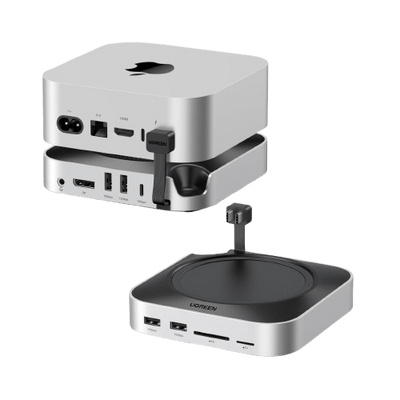
UGREEN Mac mini Dock with NVMe SSD Enclosure (Up to 8TB)
This dock usually becomes appealing once OpenClaw settles into a routine. In the early days, storage feels like a non-issue. Then weeks pass. Logs keep piling up. Memory files grow quietly in the background. Old summaries and exports stay around because deleting them feels risky. One day, you check disk space and realise it has been creeping up for a while.
That’s where the UGREEN Mac mini docking station earns its place. As a Mac mini dock with SSD enclosure, it turns storage into part of the setup instead of a loose add-on. OpenClaw writes to the same drive every time, without manual mounting or cable juggling. Nothing gets knocked loose. Nothing goes missing.
For people who leave OpenClaw running day and night, that predictability matters. Storage stops being something you manage and fades into the background, which is exactly where it should be.
{{UGPRODUCT}}
UGREEN Mac mini Dock with 4K DisplayPort and SSD Enclosure
Some users prefer to keep an eye on things. A small screen showing logs. A terminal window opens during updates. A dashboard that confirms everything is running as expected. That is where a display-focused dock fits.
The UGREEN Mac mini dock with 4K DisplayPort and SSD enclosure brings video output, storage, and extra ports together in one place. The desk stays cleaner. Cables stop multiplying. The Mac mini stays put.
The result is a setup that feels calm and intentional, not like something held together by adapters. And when OpenClaw fades into the background, that is usually a good sign.
{{UGPRODUCT}}
Do You Need a Mac mini for OpenClaw?
A Mac mini usually starts to make sense once OpenClaw fades into the background. If you expect it to respond while you’re out, send updates on a schedule, or quietly keep track of things without supervision, always-on hardware removes a lot of small friction. It also suits people who rely heavily on iMessage or who simply want OpenClaw running somewhere other than their personal laptop.
But early on, a Mac mini can feel like a step too far. When you’re still testing ideas, changing workflows, or unsure how often you’ll use OpenClaw, flexibility matters more than permanence. A VPS, a spare machine, or even your daily computer is easier to adjust or shut down without regret. If most of your messages live on Slack or Telegram, Apple-specific benefits fade quickly.
In the end, this is less a hardware choice and more a mindset shift. The real question is whether you want OpenClaw to be something you check on, or something you trust to keep running on its own.
Conclusion
OpenClaw does not need a Mac mini to work. It runs just as well on other systems when set up carefully. The reason many people end up with a Mac mini is convenience, not a requirement. Always-on uptime, separation from a personal laptop, and a predictable setup can simply feel easier to live with.
What truly shapes OpenClaw is not the hardware, but the permissions and integrations you choose to enable. Those decisions define how useful and how safe it becomes over time. Docking stations fit in as optional support tools. They help tidy long-term setups, but they are not essential. In the end, the best setup is the one that fits how you actually use OpenClaw, not how complex it looks.
FAQs
Do you need a Mac mini to run OpenClaw?
No. OpenClaw runs on many systems. A Mac mini is a choice, not a requirement.
Are OpenClaw’s proactive features enabled by default?
No. Things like scheduled briefings or automatic actions only work after you set them up. Nothing turns itself on quietly.
Is a Mac mini safer than a VPS for OpenClaw?
Not automatically. Safety has a direct correlation with the permissions, access rules, and how the system is configured.
How much storage does OpenClaw typically use?
At first, very little. Over time, logs, memory files, and outputs can grow into gigabytes, especially with daily use.
Are docking stations required for Mac mini setups?
No. They are optional tools that help with ports, storage, and tidier long-term setups, nothing more.