Why Your Laptop Is Not Charging (And How to Solve the Problem)
A battery percentage that stays the same while your laptop sits plugged in does not immediately point to a bad battery. A loose connection, unsuitable charger, or battery charge limit can produce the same symptom.
For a laptop not charging, start with the outlet, cable, adapter, and charging port. Then check your model’s power requirements and battery settings.
Key Takeaways
- Check your outlet, charger, cable, and charging port before buying replacements.
- Use the power rating and connector your laptop manufacturer specifies.
- A battery charge limit can stop charging below 100% on purpose.
- Stop using swollen batteries or damaged charging equipment and arrange service.
Laptop Not Charging? Here are the Possible Causes
If your laptop won't charge, check the outlet, adapter, cable, and DC-in socket, where the power cable connects. Battery or internal charging-circuit faults need further diagnosis.
A laptop can detect a charger without receiving enough power to charge. Docks can reduce available power, while battery settings may intentionally pause charging. Microsoft explains USB-C charging requirements.
10 Quick Fixes When Your Laptop Won't Charge
Try charging after each check. Change one thing at a time so you can identify what helps.
1. Test the wall outlet.
Plug in a working lamp to check your outlet. If your laptop charger not working through a power strip, try connecting it directly to another wall outlet.
2. Inspect the cable and DC-in connector.
Shut down your laptop, then reconnect the cables at the wall, adapter, and charging port. Stop using frayed cables, bent connectors, or scorched parts. Don't force a damaged plug.
3. Use the correct charging port.
Not every USB-C port accepts charging. Check your laptop's manual, then connect the charger to the correct port without a dock or hub. For a round barrel connector, match the manufacturer's voltage, polarity, and connector requirements; fitting the socket isn't enough.
4. Check adapter power.
Compare your laptop's required wattage with the charger's output. USB Power Delivery, or USB PD, lets compatible devices agree on charging power. If your charger won't charge laptop, check its output voltage and wattage against your model's requirements. UGREEN's laptop charging wattage guide explains what to compare.
5. Try another suitable cable.
For detachable USB-C cables, try another cable rated for your laptop's power needs. Keep the same charger. If charging only works when you bend the cable, stop using it and have the connection checked.

6. Reduce power use.
Close games or video-editing software, disconnect accessories you don't need, and try charging while your laptop sleeps or stays off. If the percentage rises, your charger may struggle to power your usual workload and charge the battery together. Microsoft recommends this test for slow charging.
7. Let the laptop cool.
If your laptop feels unusually warm, move it to a hard surface with room for airflow. Keep vents and the charger clear of bedding. Let it cool before trying again, and check your manufacturer's temperature limits.
8. Check battery charge limits.
If your laptop battery not charging beyond a fixed percentage, check its charge limit. On Lenovo Yoga 9i 2-in-1 Aura Edition (14-inch, 11), Conservation Mode holds 75%–80%. In Lenovo Vantage, open Menu > Device settings > Power > Charging settings. Lenovo lists the modes. Other models use different limits.
9. Restart, then follow model-specific reset instructions.
Save your work and restart your laptop. If charging still fails, check your manufacturer's power-reset instructions. Button combinations and hold times vary by model. HP provides its own reset and battery-check process.
10. Run battery and adapter diagnostics.
On HP laptops, run HP Battery Check through HP Support Assistant and save any Failure ID for support. On supported Dell models, tap F2 during startup to open BIOS, the setup menu before Windows. Find adapter status under Overview or Battery Information. An “Unknown” adapter can prevent charging; follow Dell's adapter-recognition checks. Menu names vary by model.
On Windows 11, open Command Prompt as administrator and enter powercfg /batteryreport. Open that report. Compare Design Capacity, the original capacity, with Full Charge Capacity, the current estimate. Lower capacity suggests wear, not necessarily a charger fault. Microsoft explains battery reports.
When to Seek Professional Help
Stop using your laptop if the battery swells or you notice smoke, burning smells, or damaged power connections. Don't press or puncture a swollen battery.
If a compatible charger and cable don't help, contact your manufacturer or a qualified repair provider. Share your laptop model, charger wattage, adapter status, and diagnostic codes. Back up your files.
How to Avoid This Problem in the Future
Keep vents clear and unplug cables by gripping the connector. Use HP Support Assistant, Lenovo Vantage, or your manufacturer's support site for model-specific updates. Follow firmware-update power requirements; don't force an update during unstable charging. Read UGREEN's charger selection guide before replacing accessories.

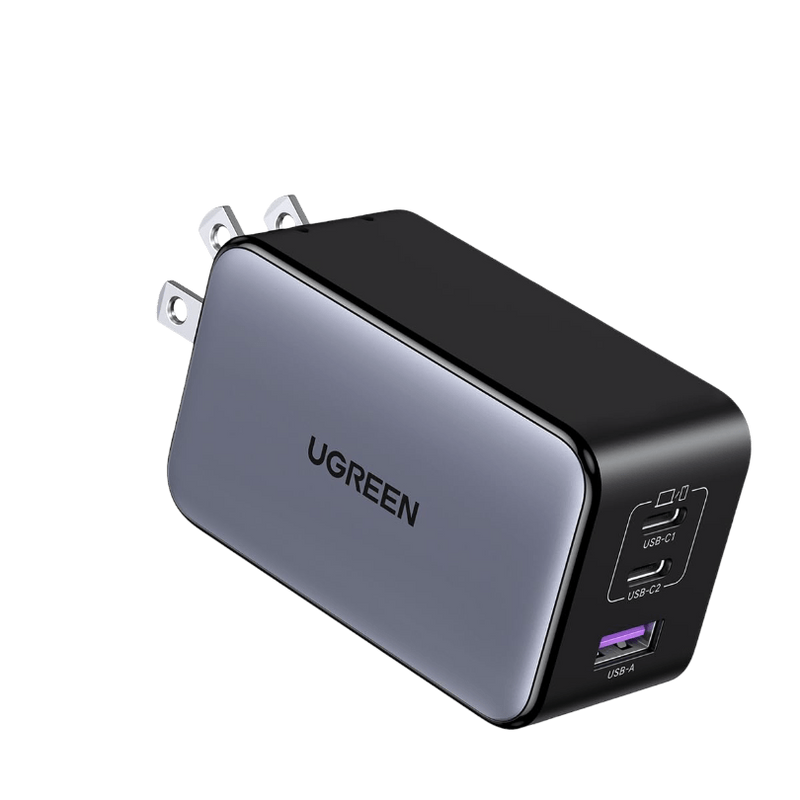
For a compatible USB-C laptop, the UGREEN Nexode 100W 3-Port Charger offers two USB-C ports, one USB-A port, gallium nitride (GaN) technology, and a foldable plug. Check compatibility and how it divides power when you connect several devices. Some laptops need their original connector or more than 100W.
{{UGPRODUCT}}
Conclusion
Laptop not charging is a common issue for old units or those with damaged plugs and chargers. Check connections, power requirements, and battery settings before choosing a replacement accessory or repair. Explore UGREEN's GaN laptop chargers after confirming compatibility.
FAQs About Laptop Chargers
Why is my computer not charging after reaching nearly 100%?
Some ASUS models pause top-ups near full charge to protect the battery. Check ASUS charging guidance for your model before treating a small drop as failure.
Why isn't my computer charging with an adapter that charges my phone?
Charging a phone confirms some output, but doesn't prove the adapter supports your laptop's required power profile.
Can you use a higher-wattage USB PD charger?
Yes, if the charger meets your laptop's compatibility requirements. USB PD negotiates power; a higher maximum rating doesn't force your laptop to draw that amount.
Why is my laptop not charging even though diagnostics passed?
Tests can miss a connection that fails only occasionally. Note when charging stops and which charger or cable you used, then share those details with your technician.