MacBook Not Charging? Causes and Step-by-Step Fixes
Is your MacBook charging but not turning on, or does macOS show no charging progress at all? First, check whether it detects external power. Battery settings can pause charging deliberately, while an unsuitable adapter, damaged cable, or hardware fault needs a different response. Separate power delivery from startup failure.
Key Takeaways
- Check battery messages to see why charging has stopped.
- Test your outlet, charger, cable, and charging port one at a time.
- Restart your MacBook. Use separate SMC reset steps only for Intel models.
- If your MacBook stays off, check the power and try the power button.
Possible Reasons Why Your MacBook Isn't Charging
To find out why your MacBook isn’t charging, read the battery menu before swapping parts. An adapter can provide enough power to run the computer without enough left over to charge its battery.
A MacBook charging problem can involve the cable, dock, battery, or internal charging circuitry. Read the battery menu and System Settings > Battery first. If your Mac battery is not charging, check external power before replacing the battery. Apple explains the main causes.
What You Can Do When Your MacBook Won't Charge
Work through these checks in order, starting with your MacBook’s charging status. Test one change at a time so you can identify what helps before replacing a cable, charger, or battery.
1. Read the charging status.
| What you see | What you should do |
|---|---|
| Charging On Hold | Check battery optimization. Choose Charge to Full Now if available, and you need 100%. |
| Charged to [%] Limit | Review the selected limit in Battery settings. |
| Slow Charger | Check your model's recommended adapter wattage and cable. |
| Battery Is Not Charging | Connect suitable power directly, then reduce demanding workloads. |
| No power response | Continue with the outlet, cable, and startup checks below. |
A MacBook not charging when plugged in may still receive power. Charge Limit requires Apple silicon and macOS Tahoe 26.4 or later; Slow Charger messages also require macOS 26.4 or later. See Apple’s Mac charging guide. If the percentage falls during gaming or rendering, stop that workload and retest. If charging progresses slowly, read UGREEN's slow MacBook charging guide.
2. Check the power path.
Test your wall outlet with a working lamp. Connect the adapter directly to your MacBook, bypassing hubs and docks. Inspect the adapter, cable, and connector; stop using damaged equipment.
For USB-C charging, try another charging-rated cable, then a suitable USB Power Delivery (USB PD) adapter. USB PD lets the adapter and computer negotiate a supported power level. Change one component at a time, including the port.
If your MacBook won't charge, shut it down, close the display for 30 seconds, then reopen it and retry. Apple's USB-C adapter checks also advise replacing a cable that only works when you move it.
3. Address heat or depletion.
Move an unusually warm MacBook and adapter to a ventilated surface. Apple specifies an ambient operating range of 10°C–35°C for Mac laptops. Retry after it cools.
After long-term storage, a depleted MacBook may need about 20 minutes on its adapter before you can use it. Don't intentionally drain it further as a calibration fix.
4. Check startup.
With compatible power connected, hold the power button or Touch ID for about 10 seconds. Release it, then press normally. Disconnect accessories and retry if necessary.
If you see a question mark or another startup symbol, your MacBook has power but cannot complete startup. Follow Apple's startup guidance rather than repeatedly replacing chargers.

Battery Problem vs. Charger Problem: How to Identify?
If the battery is not charging MacBook Pro, comparison testing can help you separate a cable or adapter fault from a problem inside the computer:
| Test result | What it suggests |
|---|---|
| Another cable restores charging | The original cable needs attention. |
| Another suitable adapter restores charging | Suspect the original adapter or its connection. |
| Only one port works | Arrange inspection of the nonworking port. |
| Charging fails across suitable adapters, cables, and ports | Investigate the battery or internal hardware with service support. |
| Immediate shutdown when you unplug | Back up your files while power works, then arrange diagnosis. |
Open System Settings > Battery and check Battery Health. “Service Recommended” can mean reduced capacity or abnormal operation. A “Normal” label doesn't conclusively rule out an intermittent fault. Use Apple's battery-health guidance.
Record your MacBook model, charging message, adapter rating, and test results before contacting support. These details help a technician diagnose a MacBook battery not charging.
MacBook Not Charging: Troubleshooting Different MacBook Models
Your MacBook model determines which charging ports, adapters, and reset steps apply. Find your model below and check its requirements before trying a fix.
MacBook Air
Find your model in the Apple menu > About This Mac. USB-C charging applies to models from 2018 onward; some newer models also support MagSafe 3. Older models need their matching MagSafe connector.
MacBook Pro
For a MacBook Pro charging problem, match the adapter to your model’s requirements. If the battery is not charging MacBook during demanding work, a small phone adapter may provide too little power. Models from 2016 onward support USB-C charging, and some also have MagSafe 3. Compare requirements in UGREEN’s MacBook charger wattage guide.
MacBook Neo
Apple specifies a 20W USB-C adapter and USB-C charging cable. Either USB-C port supports charging. Charge through USB 2 to leave USB 3 available for displays or faster accessories. Confirm these details in Apple's Neo charging guide.
For Apple silicon models, restart with power connected. On Intel models, the System Management Controller (SMC) manages power. Follow Apple's SMC instructions for your hardware; models with Apple’s T2 security chip use different steps from other Intel models.
How to Avoid This Problem in the Future
Use a suitable USB PD adapter and charging-rated cable. Read UGREEN's charger selection guide before replacing equipment.
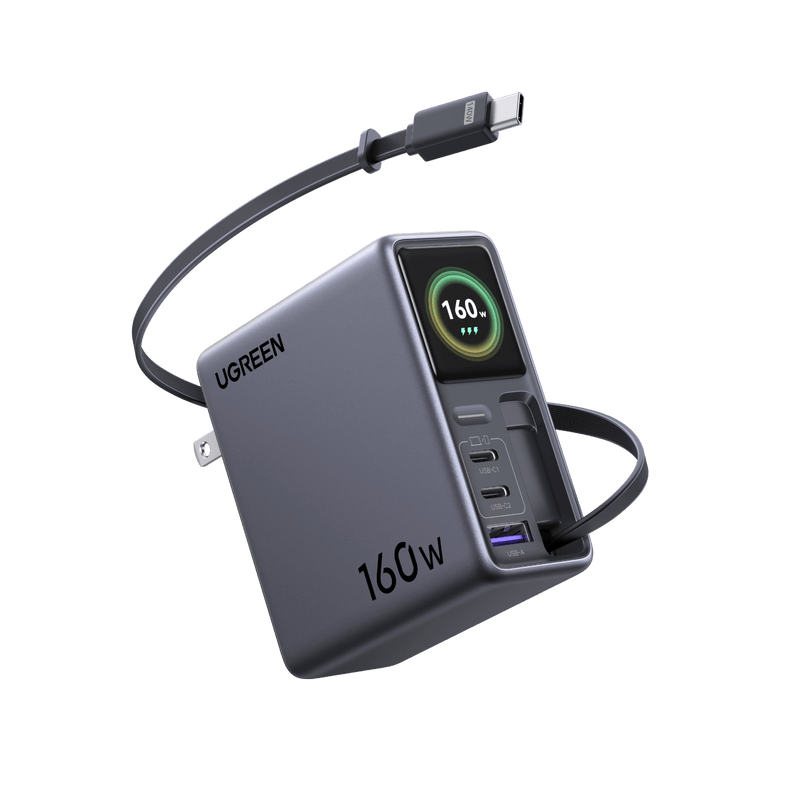
If testing identifies an unsuitable adapter, the UGREEN Nexode Pro 160W 5-Port USB-C Charger offers four USB-C ports, one USB-A port, GaN technology, and a foldable plug. It provides up to 160W total output, with up to 140W from either USB-C1 or USB-C2 when used alone. Check your model’s wattage and the charger’s power-sharing chart. Disconnect other devices during testing; 160W is the combined output, not the output of a single port.
To check detected adapter wattage, hold Option while opening the Apple menu > System Information. Select Power, then read AC Charger Information. Compare that value with Apple's adapter recommendations. Apple recommends a 140W adapter for 16-inch MacBook Pro models from 2021 onward. A 100W adapter may charge at a lower rate; it does not match that recommended power or guarantee fast charging.
Keep connectors dry, avoid cable strain, and install macOS updates when your power connection works reliably.

{{UGPRODUCT}}
Conclusion
Check the status message, isolate the power path, then use your model's restart procedure. If those checks fail, arrange diagnosis. Compare UGREEN's GaN laptop chargers only after confirming your charging requirements.
FAQs About MacBook Chargers
Why won’t my MacBook charge faster with two chargers?
Your MacBook uses one source at a time, selecting the most powerful.
Why is my Mac not charging with an adapter that charges my phone?
A phone test confirms some output, but not adequate USB PD power for your laptop.
Can I fix my MacBook charger myself?
Limit your checks to external connections and replaceable cables. Have a damaged adapter evaluated rather than opening its mains-powered enclosure.
How do you start Apple Diagnostics?
Shut down first. On Apple silicon, hold the power button until startup options appear, then hold Command-D. On Intel, hold D during startup, or Option-D if needed. Follow Apple's diagnostics instructions and record reference codes.
Why is my MacBook not charging from a USB-C monitor?
The monitor must supply enough USB Power Delivery for your model. Check its output and cable rating. Apple supports compatible USB PD displays as power sources.