Why Your Phone Won’t Charge
2% battery remaining. You’ve had the charging cable plugged in for hours, but something’s wrong. We’ve all been there—that moment of frustration when our lifeline to the world refuses to charge. Whether it’s before an important call, during an emergency, or in the middle of navigating to a new destination, a phone that won’t charge can throw your entire day into chaos.
The good news? Many charging issues have simple solutions. In this guide, I’ll walk you through the most common reasons your phone won’t charge and provide clear, actionable steps to get your device powered up again.
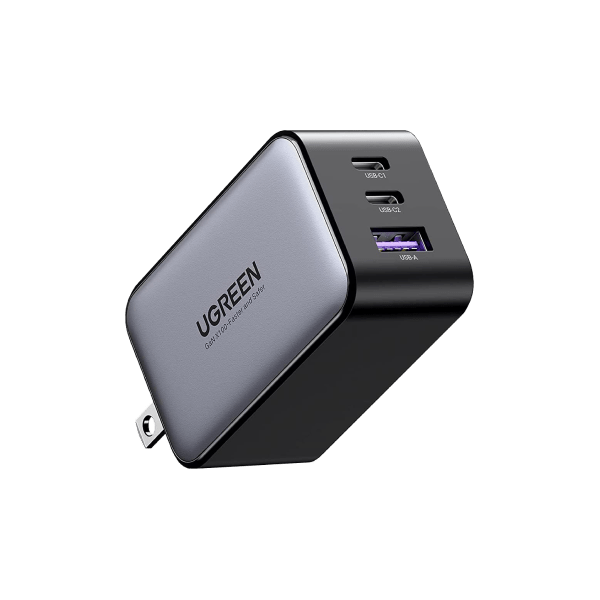
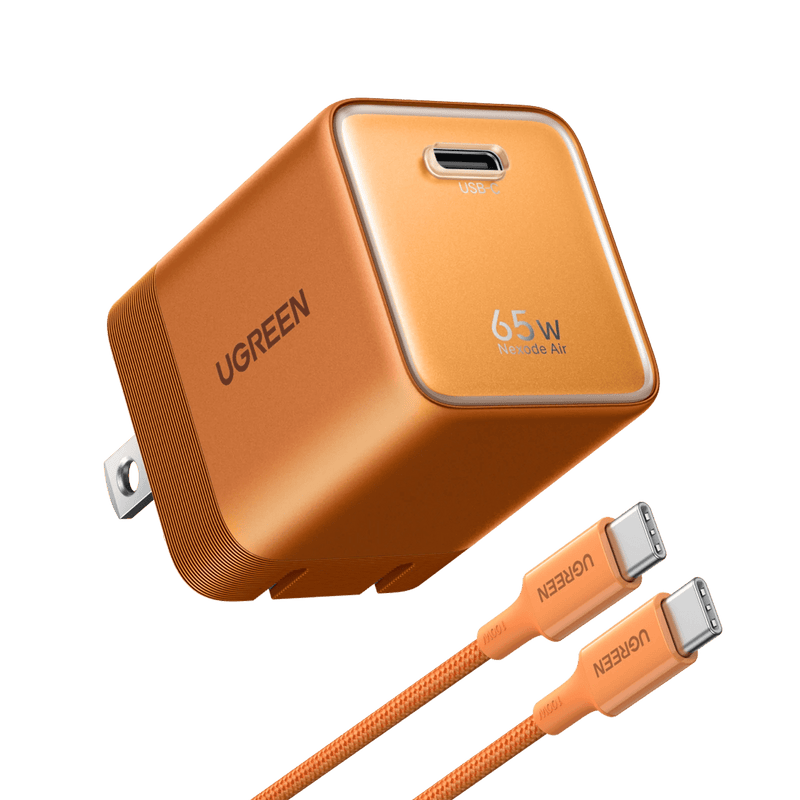
If your UGREEN charger is not working, start by checking the outlet, cable and phone separately. For multi-port and wireless models, the selected port, connected devices and charging setup also matter.
Key Takeaways
- Hardware First: Faulty cables, blocked ports or unsuitable adapters can prevent charging. Inspect your equipment and stop using visibly damaged accessories.
- Check the Port Safely: Inspect the disconnected charging port without scraping its contacts. Follow your phone manufacturer’s cleaning instructions, and get help with compacted debris or damage.
- Test Power Sources: Try another working outlet, compatible cable and adapter, changing one item at a time.
- Check Battery Settings: Charging limits and temperature protection can pause charging before 100%; this does not automatically mean the battery needs replacing.
- Know When to Call Pros: If working accessories still cannot charge your phone, seek professional help. Contact UGREEN support if testing points to the charger.
Common Reasons Why Your Phone Won’t Charge
Hardware Issues: The Physical Culprits
Charging issues are often caused by something small, something fixable. A frayed cable, a speck of lint, or even a software hiccup could be standing between you and a fully powered device. Let’s break down the most common culprits—step by step—so you can identify what’s really going on.
{{UGPRODUCT}}
A. Faulty Charging Cable or Adapter
With the cable disconnected, inspect its length and connectors for fraying, splitting or other damage. And let’s not forget the adapter: those tiny prongs might look sturdy, but they can become bent or damaged. Warmth alone does not mean an adapter is faulty, but charging that only works when the cable is held “just right” needs attention. Test another cable before replacing the phone charger. Stop using equipment with exposed wires, melting, smoke or a burning smell.

Related reading: how to choose the right charger.
B. Dirty or Blocked Charging Port
Dust, lint, and debris have made themselves at home in your charging port without you even noticing. The result? A weak connection that leaves your battery gasping for power. Shine a flashlight into the disconnected port—do you see anything lurking inside? Follow your phone manufacturer’s cleaning guidance rather than inserting a toothpick or scraping the contacts. Compacted debris, corrosion or bent contacts should be inspected by a qualified service provider.
C. Battery Problems
Every battery has its limits, and yours might be reaching its breaking point. Over time, lithium-ion batteries degrade—they hold less charge, take longer to charge, and eventually may need service. If your phone dies quickly even after charging, check its battery health where available. However, charging that stops at a particular percentage can also result from a charging limit or temperature protection, rather than a failing battery.
D. Power Source Issues
Sometimes, it’s not your phone—it’s where you’re plugging it in. That outlet in your kitchen? It might not be delivering power. The USB port on your laptop? It could provide less power than your device needs for its expected charging speed. Always test another working outlet and a compatible power source before jumping to conclusions.
E. Software Glitches or Bugs
Software problems can also affect charging behavior. Restarting your phone may resolve a temporary issue, while battery settings can intentionally delay or stop charging. Check for charging messages and available software updates before assuming the charger has failed.
How to Troubleshoot Charging Issues
Troubleshooting your phone’s charging issues might feel like solving a mystery, but it doesn’t have to be complicated. With a bit of patience and a systematic approach, you can often pinpoint the problem and get your device back to full power. Follow these steps carefully, and you’ll be one step closer to resolving your charging woes.
-
Test with a Different Cable and Adapter
Start with the basics. Grab another compatible charging cable and adapter—preferably ones you know work with another device. Change the cable first while keeping the phone, adapter and outlet unchanged. Then test another adapter with the working cable. If your phone starts charging, these separate checks help identify which accessory or connection needs attention.
-
Clean the Charging Port Carefully
Next, take a closer look at your phone’s charging port with power disconnected. Shine a flashlight inside—do you see dust or debris lurking in those tiny crevices? A blocked port can stop your charger from making a solid connection. Follow the manufacturer’s cleaning instructions and avoid forcing the connector or scraping the contacts. If the phone reports liquid in the port, disconnect wired charging and let it dry as instructed. Apple advises against heat, compressed air, rice and objects inserted into a wet connector; see its liquid-detection guidance.
-
Restart Your Phone and Check for Software Updates
Sometimes, all your phone needs is a fresh start. Restarting can clear temporary glitches that might interfere with charging. While you’re at it, check for software updates—manufacturers often release fixes for bugs that could be causing charging issues. A quick restart or update might be all it takes.
Also check for a charge limit or temperature warning. For iPhone, Optimized Battery Charging, a configured charging limit or temperature protection can pause charging before 100%. Follow Apple’s charging checklist for the appropriate checks and restart sequence. Android settings and restart steps vary by model.
-
Try a Different Power Source
If your phone still won’t charge, it’s time to test where you’re plugging in. Move to another working outlet or try using a compatible power bank. Testing another source helps separate an outlet or adapter problem from a phone issue.

-
Check Battery Health or Consider Replacing It
If none of these steps work, check your phone’s battery health where available. Reduced capacity or rapid draining can help a technician assess the battery, but charging failure alone does not prove that it needs replacing. Rule out charging settings and accessory problems first. If the phone still will not charge with working equipment, arrange a professional inspection.
UGREEN Charger Not Working? Additional Checks
UGREEN Charger Not Charging Through One Port
Disconnect all other devices and test one phone with a working, compatible cable. If your charger has multiple ports, repeat the test on each suitable port. Check the model’s output specifications because USB-C and USB-A ports may support different charging protocols and power levels.
If charging works with one device but slows when others are connected, check the power-sharing chart for that exact model and port combination. The charger’s total wattage is shared across active ports; it is not necessarily available from every port at once. Our multi-port charging guide explains this in more detail.
UGREEN Charger Stopped Working Suddenly
Disconnect the devices and cables, unplug the adapter, then reconnect it to a working outlet with one compatible device. Follow any additional instructions in your model’s manual; there is no single reset procedure that applies to every charger.
Try another working cable and another compatible device. If the charger still fails, or one port repeatedly stops working, contact UGREEN support. Do not open the adapter or repeatedly reconnect equipment that shows damage or abnormal overheating.
UGREEN Wireless Charger Not Working
Check the adapter and cable supplying the wireless charger, and make sure they meet that model’s input requirements. Center a compatible phone on the charging area, remove a thick or incompatible case, and keep cards or metal objects out from between the phone and charger.
Test wired charging separately. If wired charging works, focus on the pad’s power supply, phone compatibility, alignment and case. For compatible iPhones, see our MagSafe charger troubleshooting guide.
When to Seek Professional Help
You’ve tried every trick in the book—swapped cables, checked ports, restarted your phone—but nothing seems to work. At this point, it’s easy to feel defeated. But don’t worry; some problems are simply beyond DIY fixes. Knowing when to call in the experts can save you time, money, and further frustration.
Persistent Charging Issues After Troubleshooting
If your phone still refuses to charge despite trying working, compatible cables, adapters, and outlets, it’s time to bring in a professional. Internal hardware problems—like a damaged charging circuit—require specialized tools to diagnose.
Phone Won’t Turn On or Charge at All
A completely drained phone may need time connected to a working charger before it responds. Follow your manufacturer’s recommended charging wait time and restart steps. If the phone remains unresponsive afterward, arrange a professional assessment rather than assuming a specific internal component has failed.
When to Contact UGREEN Support
If testing points to your UGREEN adapter, prepare its model number, proof of purchase, affected ports and the cables and devices you tested. Contact UGREEN support through the website and review the UGREEN US warranty policy for purchases from us.ugreen.com. For purchases elsewhere, follow the applicable retailer or regional support process.
Conclusion
Before replacing anything, work through the cable, adapter, outlet and phone checks one at a time. If your UGREEN charger is not working, test it with one compatible device and check the model’s port specifications. Persistent problems with working accessories call for professional help. Got a story about your own charging woes—or a tip that worked wonders? Share it in the comments below!